
The Configure Backup page lets you create configuration backup to store the system related information such as users, devices, permissions, normalization policies, and repos; and log and checksum backup to store logs, indexes, and their checksums.
Go to Configure >> Settings >> Operations >> Configure Backup.
Select the LogPoint instances where you want to create the configuration backup.
Click Next.
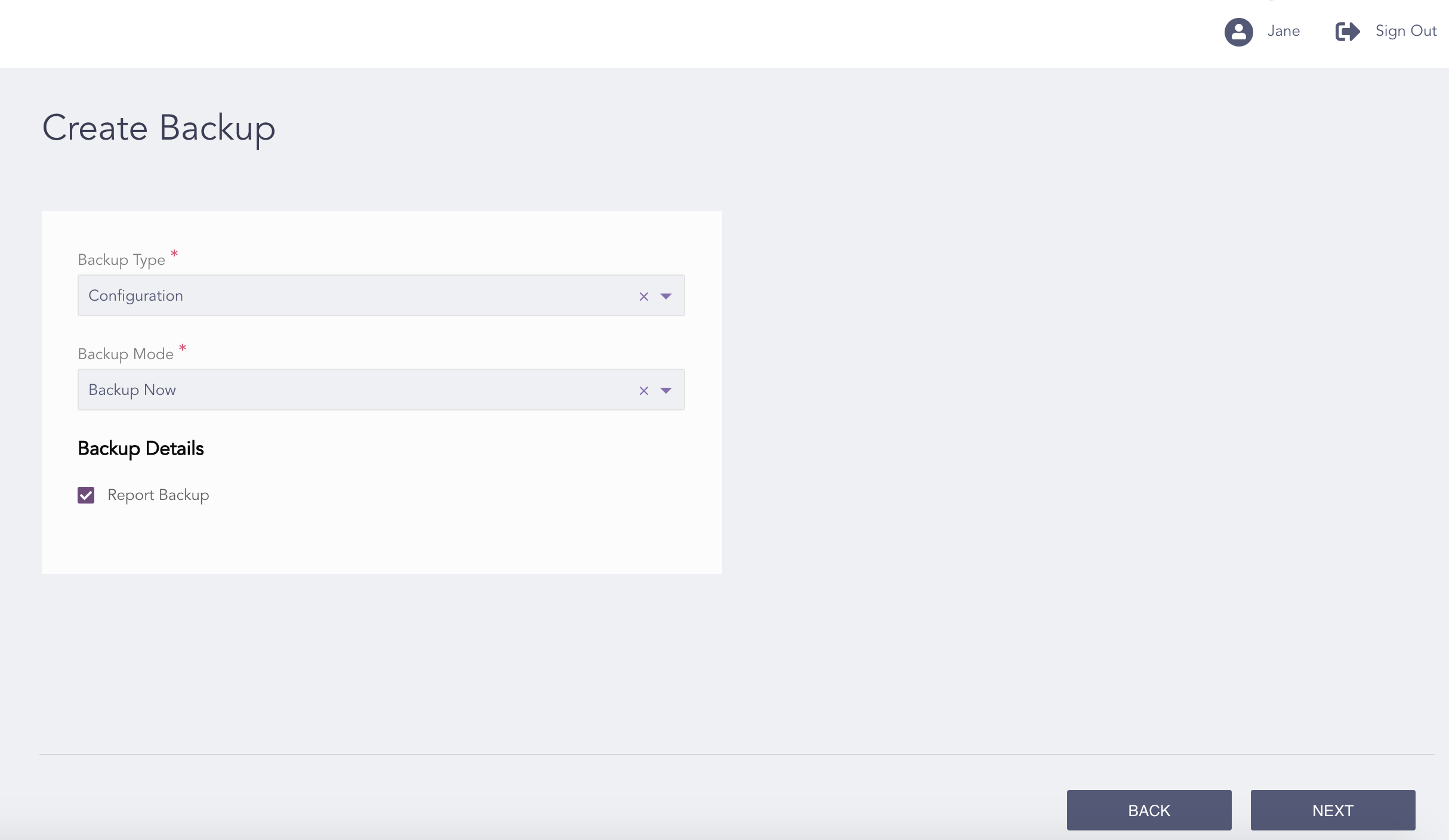
Configuration Backup - Backup Now
Select Configuration as the Backup Type.
Select Backup Mode.
If you select Backup Now, enable Report Backup to create a backup of the LogPoint generated report files.
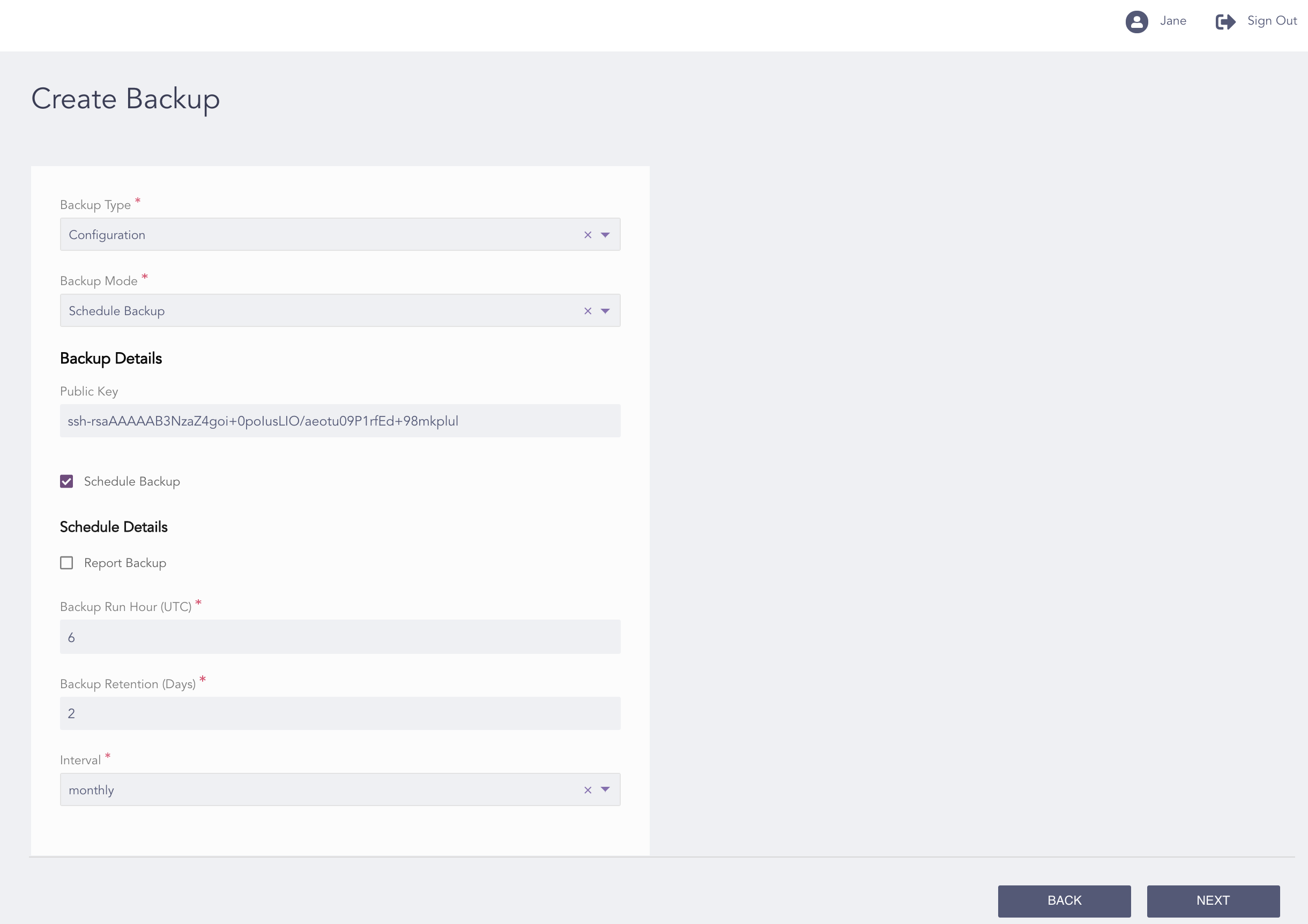
Configuration Backup - Schedule Backup
If you select Schedule Backup:
Enter a Public Key to access the backup repositories.
Enable Report Backup to create a backup of the LogPoint generated report files.
Enable Schedule Backup to schedule the backup for a specific time. Enter a Backup Run Hour, a Backup Retention (Days), and select a backup Interval.
Click Next.
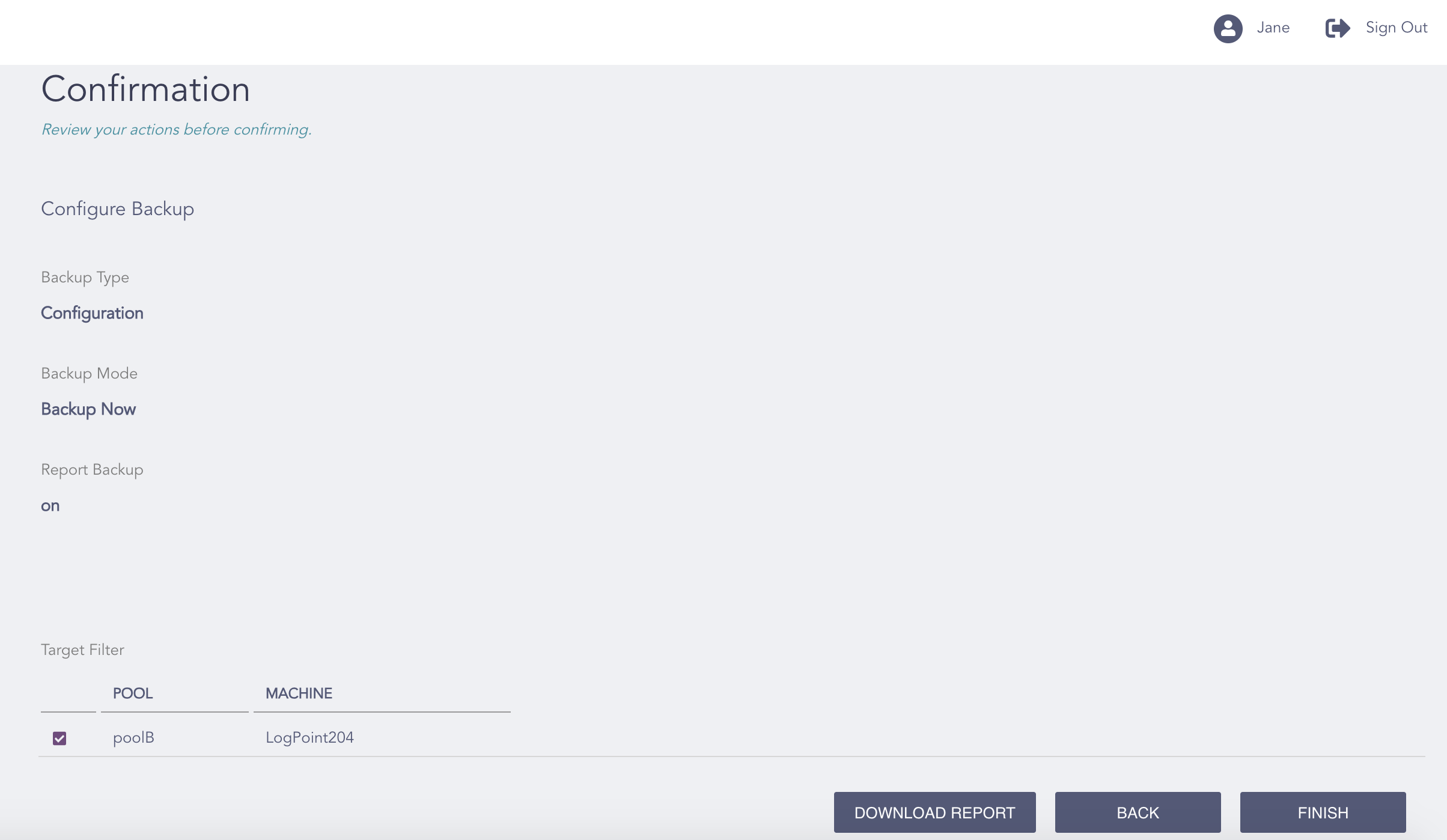
Confirming the Changes
Review your changes. You can go Back to make any changes if necessary.
Note
Click Download Report to save the summary of the task in PDF.
Click Finish.
Click OK.
Go to Configure >> Settings >> Operations >> Configure Backup.
Select the LogPoint instances where you want to create the logs and checksum backup.
Click Next.
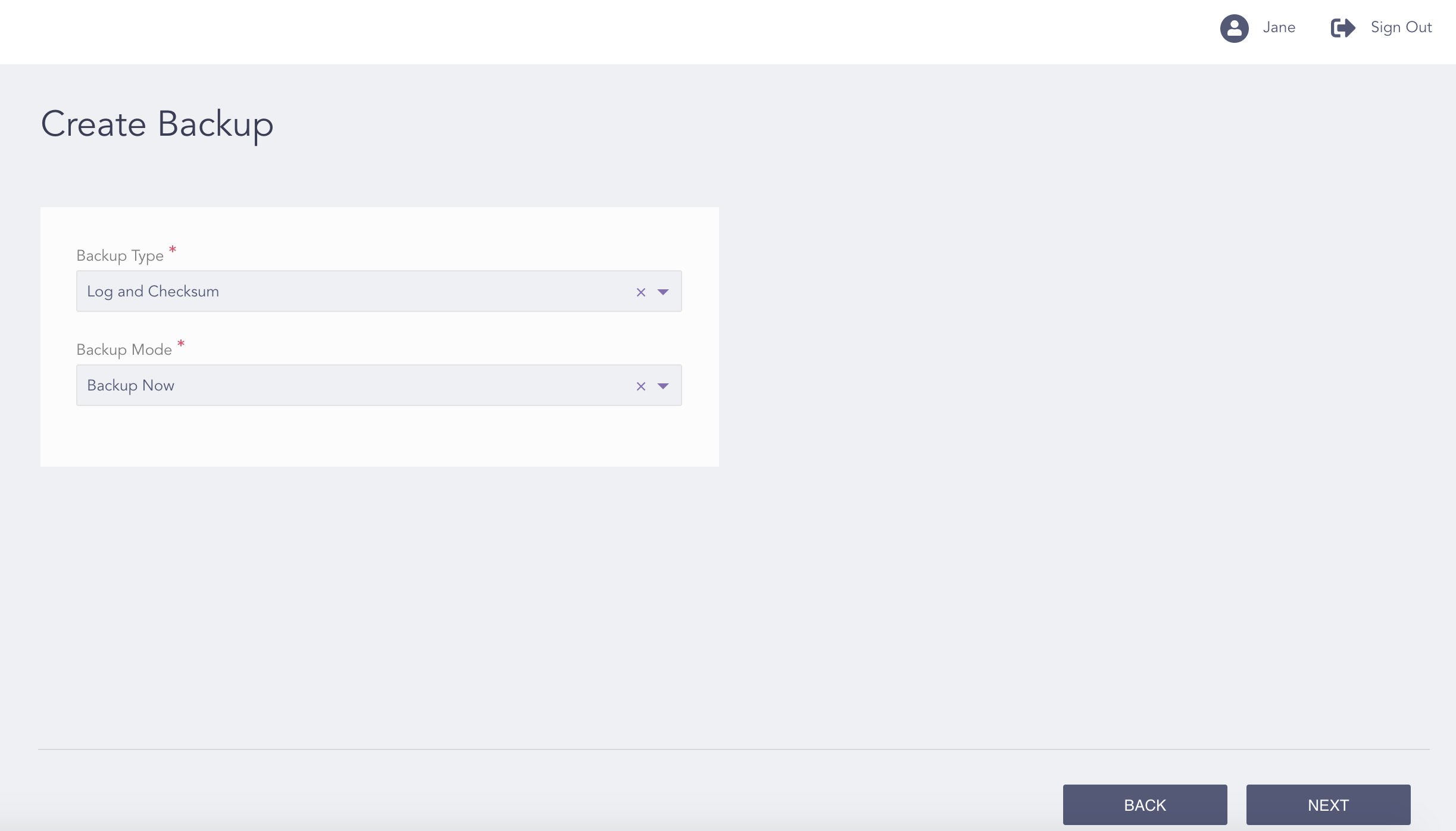
Logs and Checksum Backup - Backup Now
Select Logs and Checksum as the Backup Type.
Select a Backup Mode.
If you select Backup Now, a full backup of the current state of all the available repos and their log buffers is taken.
If you select Schedule Backup, you can choose either None, Full, or Customized.
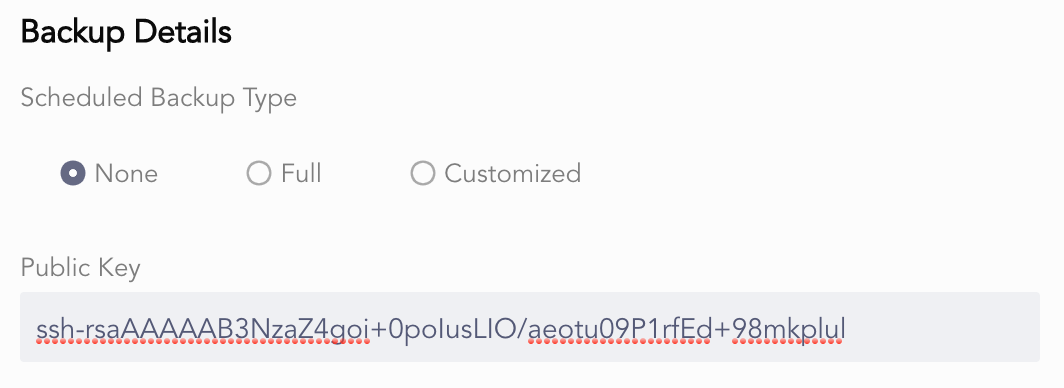
Logs and Checksum Backup - None Schedule Backup
If you select None, enter a Public Key if necessary.
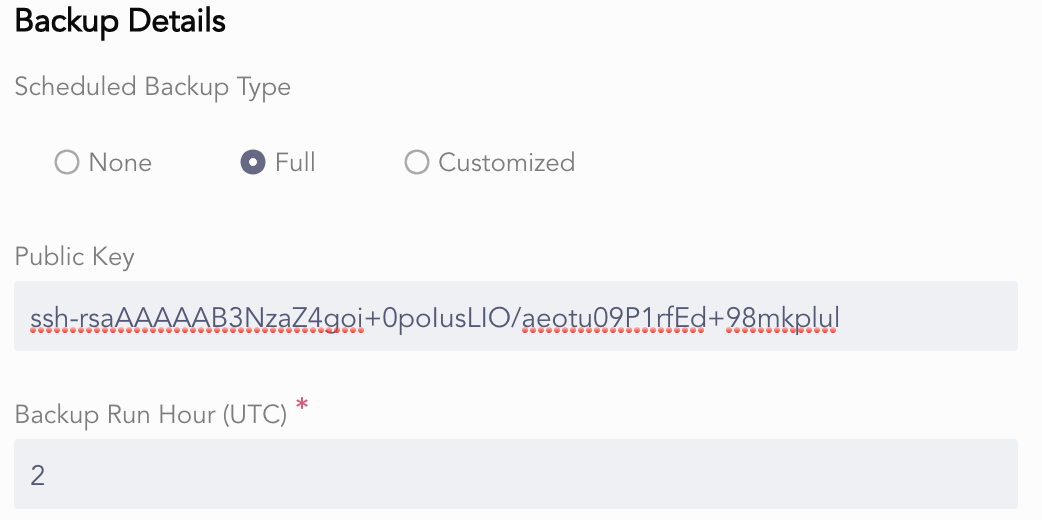
Logs and Checksum Backup - Full Schedule Backup
If you select Full, enter a Public Key if necessary and a Backup Run Hour in the UTC timezone.
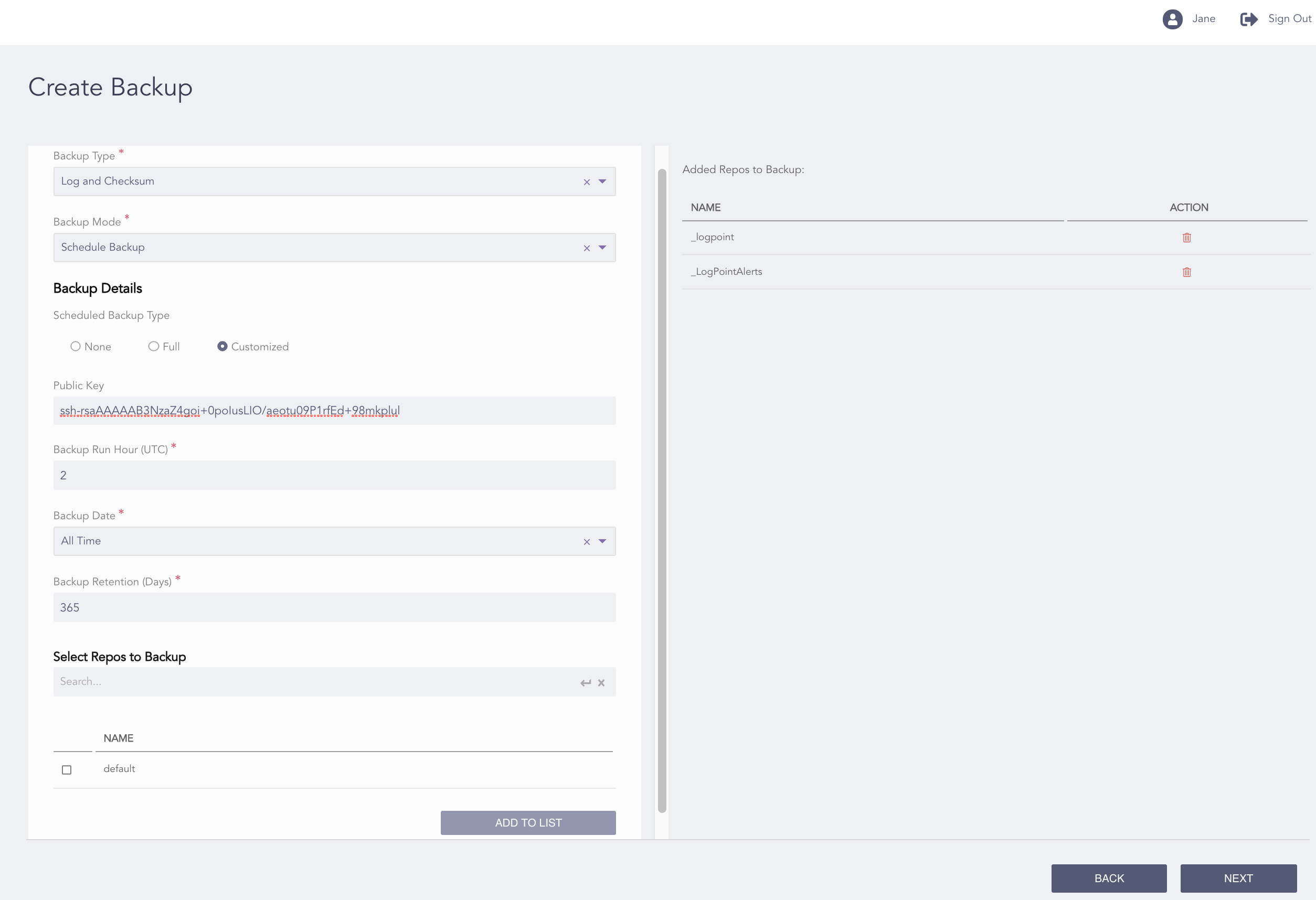
Logs and Checksum Backup - Customized Schedule Backup
If you select Customized:
Enter a Public Key.
Enter a Backup Run Hour in the UTC timezone and a Backup Retention (Days).
Select a Backup Date. If you choose Specified time, select a date from when you want to create the backup from the Backup From option.
Select the repos to backup and click Add to List.
Click Next.
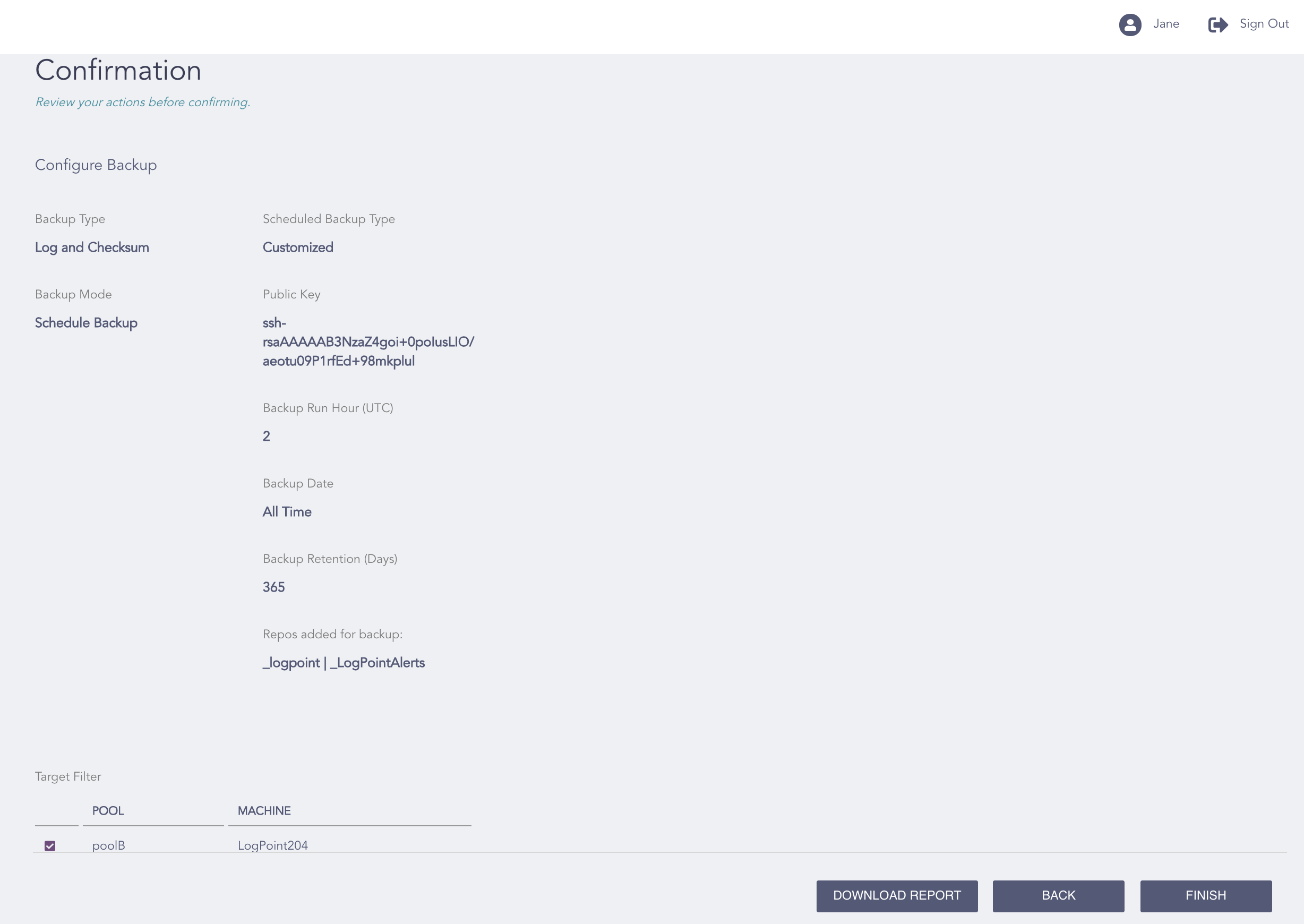
Configuration Backup - Confirmation Page
Review your changes. You can go Back to make any changes if necessary.
Note
Click Download Report to save the summary of the task in PDF.
Click Finish.
Click OK.